
Creating an Account:
Download the Philips EasyKey Plus App
Google Play - EasyKey Plus App
App Store - EasyKey Plus App
Select AU (Australia) as the country, then enter your email address or mobile number and create a password.
Tick Read & Agree to the Privacy Policy & Terms of Use.
Tap SIGN UP and follow the on-screen instructions to complete your account setup.

App Setup
Tap on "Add Device"

Scan the QR code located behind the indoor screen of the door lock. Ensure your 2.4GHz Wi-Fi network is selected.

Or, you can manually select your lock model by tapping the “Manual” option and choosing it from the list.

If you choose to scan the QR code behind the indoor screen, please make sure the indoor screen is installed before proceeding to the next step.
Ensure your 2.4GHz Wi-Fi network is selected. Enter your Wi-Fi password. Tap Next.

Touch the keypad to wake up the door lock.
Press the [*] key twice.
Enter the Master PIN, then press # to confirm.
Follow the voice prompt and press [4] to enter Network Setup.
Wait for the voice prompt saying “Connecting”, then tap Next in the app to continue.

Hold the QR code shown in the app directly in front of the door lock camera, about 8–20 cm away, until it is recognised.

When you see “Wi-Fi connected”, tap Next to continue.
Enter your Master PIN.
Select your time zone in the app.
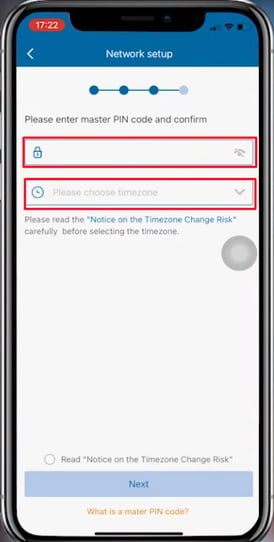
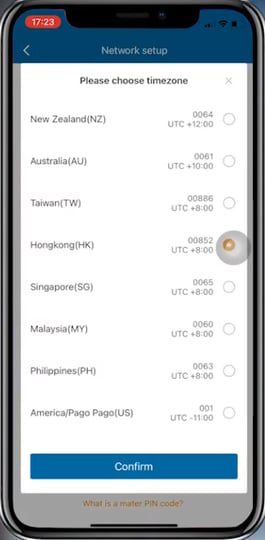
Tap the “Read Notice on the Timezone Change Risk” checkbox, then tap Next to proceed.
Wait for the message “Connecting succeeded.”
Assign a name to your lock.
Tap Get Started to complete the setup.
