

Download the Philips Home Access App- Scan the QR code or search "Philips Home Access" to download the Philips Home Access app from the Apple App Store or Google Play Store.

Create a User Account - Register and log in to the Philips Home Access app.

.
Tap on the "+" Add device to enter the scanning page

Scan the QR code on the top of the Wi-Fi chime
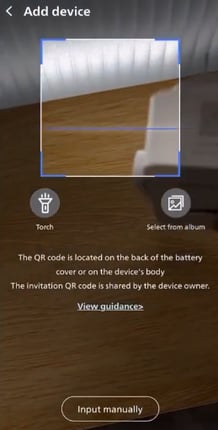
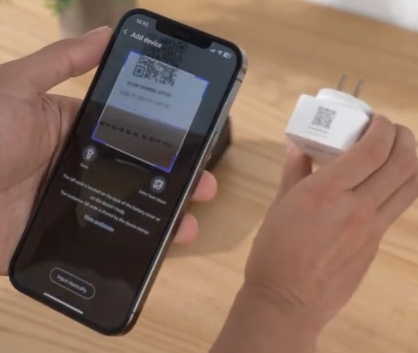
Tap on Next when routed to the product page

You will be routed to the connection mode screen, choose the type of connection you prefer.

Choose "Ethernet Connection"
Follow the in-app instructions, then tap on "Next." - Plug the included Ethernet cable into your Wi-Fi chime.
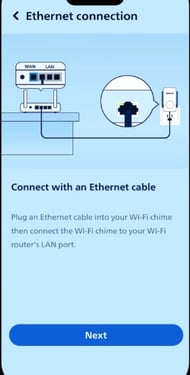
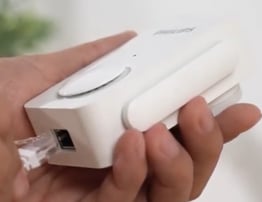
Connect the Wi-Fi to your Wi-Fi router's LAN port.

Follow the in-app instructions, then tap on "Next." - Plug your Wi-Fi chime into an outlet or power strip, adjust its antennas, and wait about 2 minutes for it to get ready.
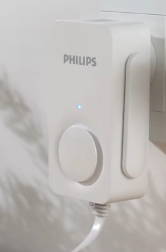
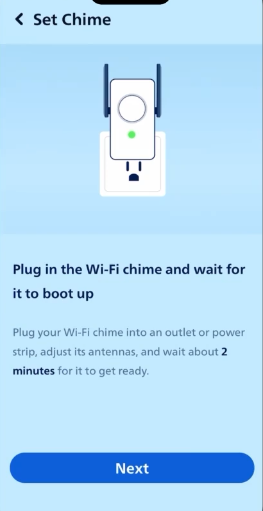
Connect your phone to a 2.4 gHz Wi-Fi. Both the phone and chime should be connected to the same network.

Adjust the antenna of the chime and set it to pairing mode.
Press the SYNC button for 2 seconds until you hear a beep and see the indicator flashing green.

Tap on " The light is flashing green" on the app

Connecting
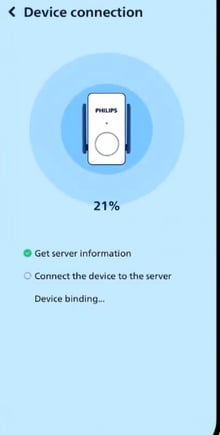
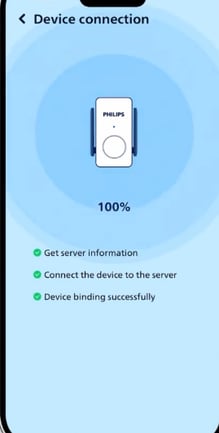
Create a name for your device and tap on "Next"

Power on the vide doorbell - Press the SYNC button until you hear a welcome tone to power on the video doorbell, then tap on Next on the app.

Press the doorbell button on the video doorbell. When the doorbell rings, the Wi-Fi chime will send out a "Ding-dong" sound simultaneously.
Tap on "Heard Ding-dong" on the app.
