
Make sure the lock is properly installed and palm is clean and uncovered for scanning and registration.
Open the Philips Home Access app. Tap Palm ID - Add pam ID.
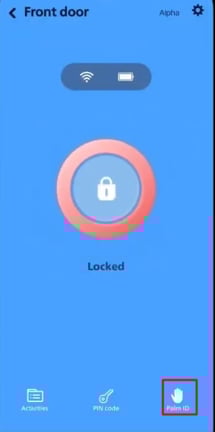
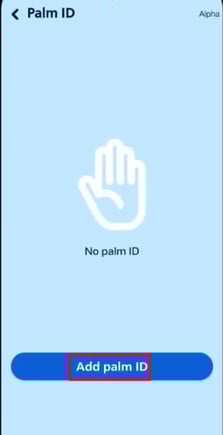
Read the in-app instructions and tap "I'm ready"

Place your palm in front of the Palm ID Reader.
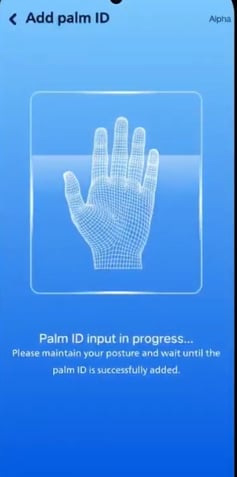
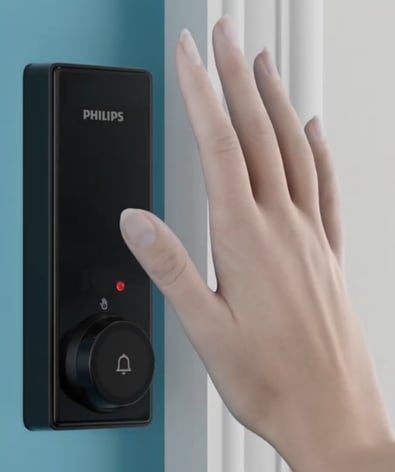
Keep your palm steady while the reader scans and align the center of your palm with the Palm ID reader
Extend your fingers straight to ensure your entire palm can be scanned
Keep your palm parallel to the lock, maintaning a distance of 2-6 inches (50-150 mm)

The reader will scan your palm vein patterns to create a unique Palm ID.
When your Palm ID is successfully added, you'll hear the prompt " Enrollment successful."
Usage Notes
After enrollment, the Palm ID reader can recognize your palm from any direction within a 180-degree range centered on the palm.
All Palm IDs are securely stored locally on the device.
Best Practice
It is recommended to add two Palm IDs for each palm:
Add the first Palm ID with your palm facing upward.
Add the second Palm ID with the same palm facing downward.
This ensures reliable unlocking regardless of palm orientation.
