Important Notes:
Ensure the indoor screen is installed before setup.
Enable Bluetooth and Location Services on your mobile phone.
Setup Steps
On the door lock keypad, Press and hold #.

Enter the Master information (Master PIN, fingerprint, or keytag) and press #.
Press 4 to access Network Settings.

Press 1 for Hotspot (AP Mode) Connection.

Launch the Tuya App on your mobile device.

Tap Add Device.

Select Camera & Lock and choose Lock WiFi.

The app will detect your 2.4 GHz Wi-Fi network automatically.
Enter the Wi-Fi password and tap Next.

Tap on "Confirm the indicator is blinking rapidly"

Select AP Mode if the lock’s light indicator rhythm matches the rhythm shown in the app under AP Mode. If the rhythm does not match, select EZ Mode instead.

Tap Go to Connect.

You will be redirected to your phone’s Wi-Fi settings.
Connect to the lock’s hotspot (e.g., Smart Life).

Return to the Tuya App.
The app will display: “Connect your mobile phone to the device’s hotspot." Tap Reconnect.

The app will show the Connecting screen with a 2-minute countdown.

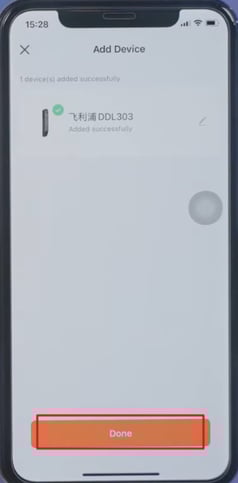
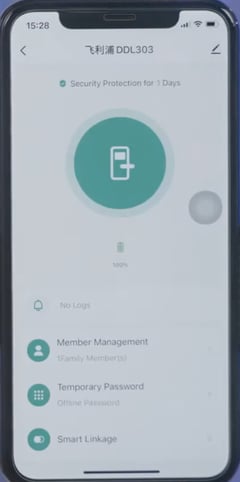
When “Operation Succeeded” appears, tap Done.