
Keep the door lock and mobile phone within 1 meter of each other and ensure Bluetooth is enabled on your phone.
How to Register a Fingerprint on the App
Open the Philips Home Access app and enter the door lock interface, then tap on Fingerprint.


Choose the type of fingerprint to be registered:

Permanent – for long-term use
Recurring – valid during scheduled periods (e.g. Airbnb guests, cleaners)
Duration – temporary access for a specified date and time range
Follow the on-screen instructions and tap on "Next:

Press and hold your finger on the fingerprint sensor.
When prompted, lift and re-place your finger.
Repeat this process 8 times until registration is complete.

Once registration is successful, assign a name for the fingerprint and tap "Complete" to finish or "Continue adding" to register another fingerprint.

Note:
We recommend using the thumb, index, or middle finger.
To improve recognition, register the finger from different angles and press firmly during each scan.
How to Register a PIN on the App
Open the Philips Home Access app and enter the door lock interface.
Tap PIN Code.

Choose whether to create an Online or Offline PIN/password
Online Password - PIN can be setup from the lock directly using this option
Offline Password - When you're away from the actual lock, PIN can be generated through the app using this option.
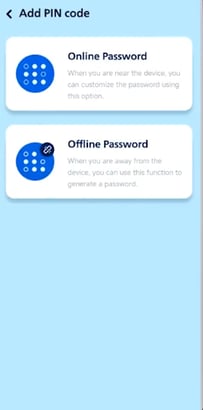
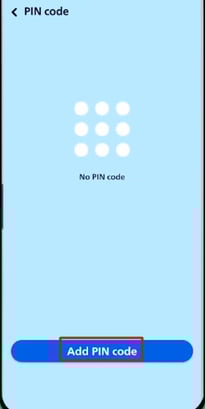
Choose the type of PIN to be registered:
Permanent – for regular users
Recurring – scheduled access (e.g. cleaners, Airbnb guests)
Duration – temporary access within a specified time period

Enter the 6–12 digit PIN code on the app and tap Create

Assign a name for the PIN and tap "Complete" to finish or "Continue adding" to register another PIN.
Note:
PINs containing 6 repeated digits or sequential numbers (e.g. 123456) will not be accepted.
How to Register a Key Tag on the App
Open the Philips Home Access app and enter the door lock interface, tap on Card, then "Add Card"
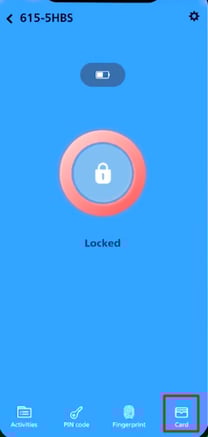
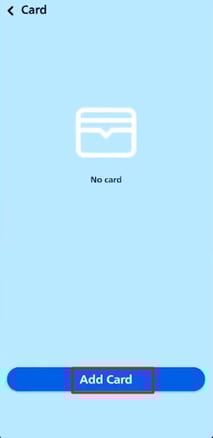
Choose the type of key tag to be registered:
Permanent – long-term use
Recurring – access during scheduled periods
Duration – temporary access within a specified time range

Follow the app prompt and place the key tag near the key tag sensor on the lock.

Wait for confirmation that the key tag has been successfully registered.
Assign a name for the key tag, then tap Complete to finish.
